
Time Required: 20 minutes
Class Materials:
- none
We are now ready to clone our VM. From this point forward we will have two machines, and we will start to think of them individually.
Make sure your Windows VM is shutdown.
As mentioned earlier I am going to call my two virtual machines Rodolfo and Mimi after the lovers from the opera La Boheme.
Right click on the Windows VM and select Manage->Clone. This will pull up the cloning dialog box. If you have been making clones of the machine throughout the previous parts then you will already be familiar with this dialog.

I recommend you select The current state of the virtual machine and Create a full Clone.

VMware will prompt you for a name for your new clone. In my example I cloned the exisitng machines called Rodolfo to create the machine Mimi.
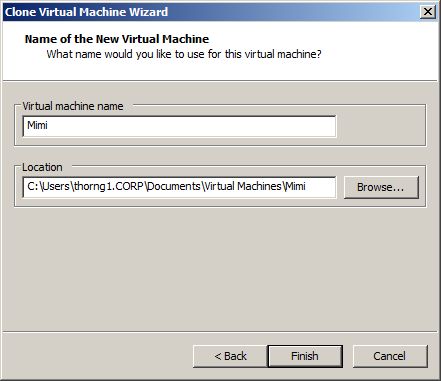
Keep a note on disk free space, since full clones can consume disk space fast.
Once the cloning is complete, start up the Mimi machine as we need to rename and re-IP the machine.
Use the ncpa.cpl command again to access the Network Connections interface, and repeat the steps you used in Step 2 to change the Private IP address to 10.10.2.40, and the Public IP address to 10.10.1.40.
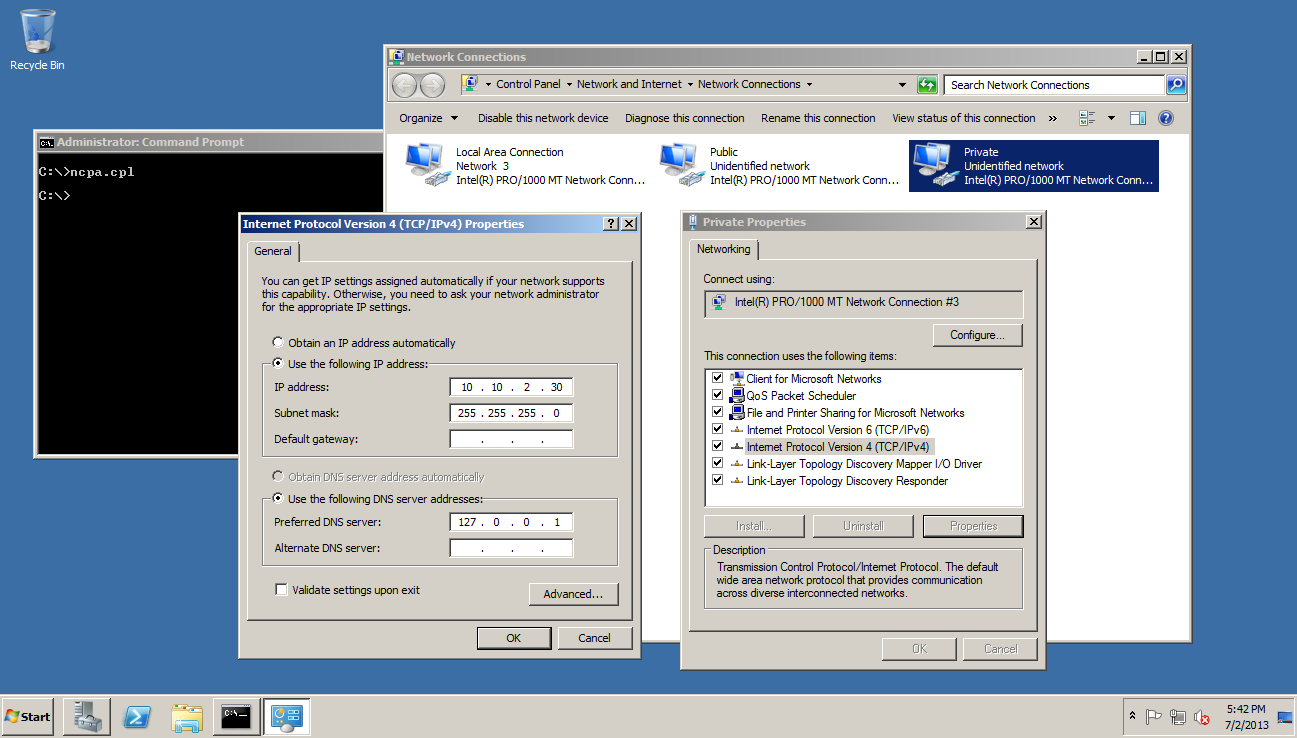
Next, use the command:
command sysdm.cpl
To open the System Properties interface, and select the Change button to change the hostname to MIMI.
When this is done, reboot the VM.
| Article Quick Navigation | ||
|---|---|---|
| Previous Step | Main Index | Next Step |
 the gruffdba