
Time Required: 10 minutes
Class Materials:
- none
Next we are going to create a new RAC database using DBCA.
Open a new command window to make sure all environment settings are established. Do not re-use the same window you used to install the Grid and Database.
Launch the Database Creation Assistant using the following command:
C:\>dbca
This will start the dbca interface and present the following menu:
Click “Oracle Real Application Clusters (RAC) database” and click Next.

Select “Create a database” and click Next.

Select “General Purpose or Transaction Processing” and click Next.

At the next screen select set the database name and SID. In my example I have used labhoeme for both. Select the nodes to create the database on, which in my example is both Rodolfo and Mimi.

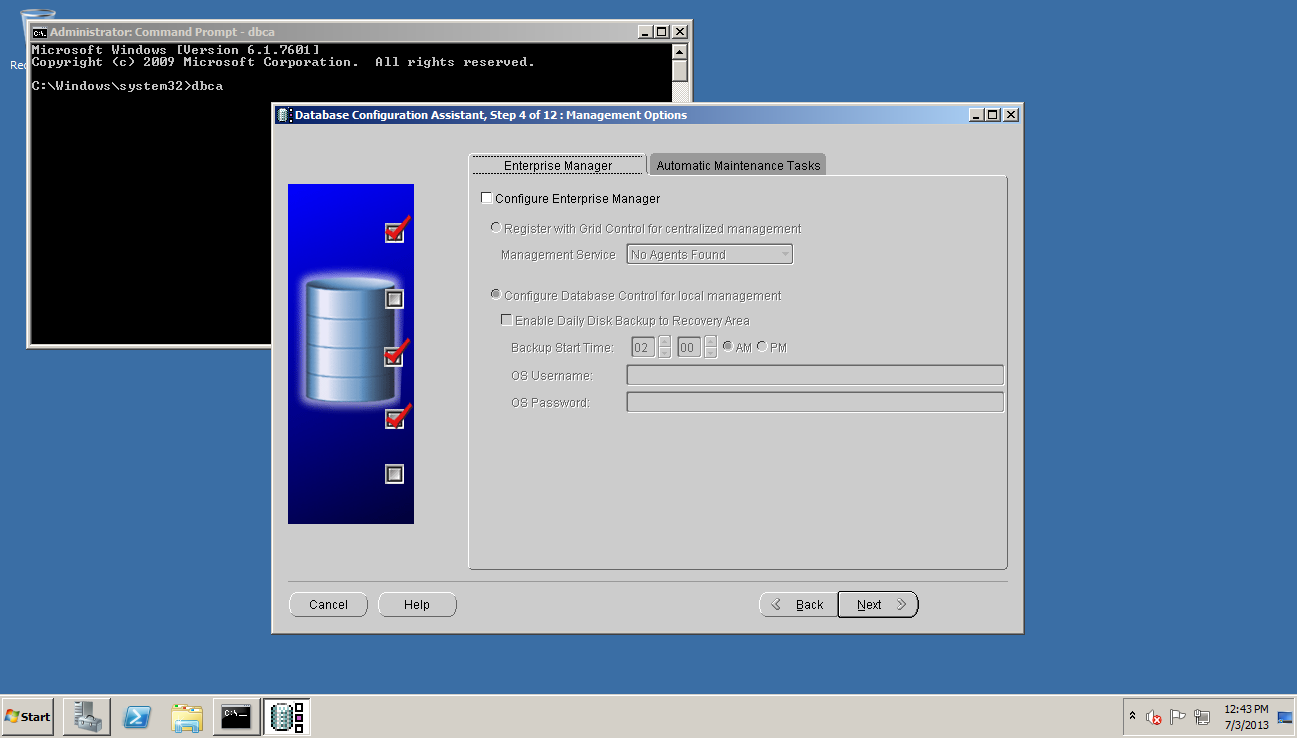
At the next screen, de-select Configure Enterprise Manager unless you want the OEM/DBC configured. Click Next.
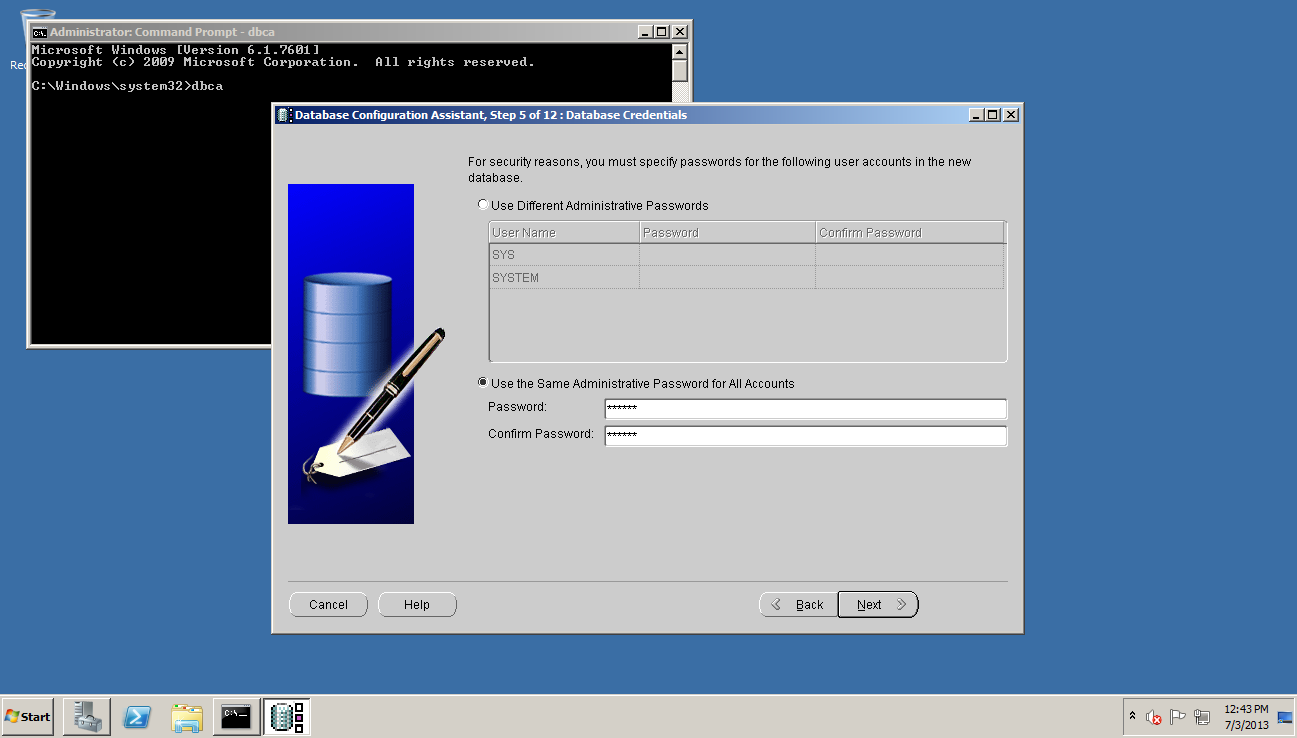
At the next screen set the database for the SYS and SYSTEM accounts.
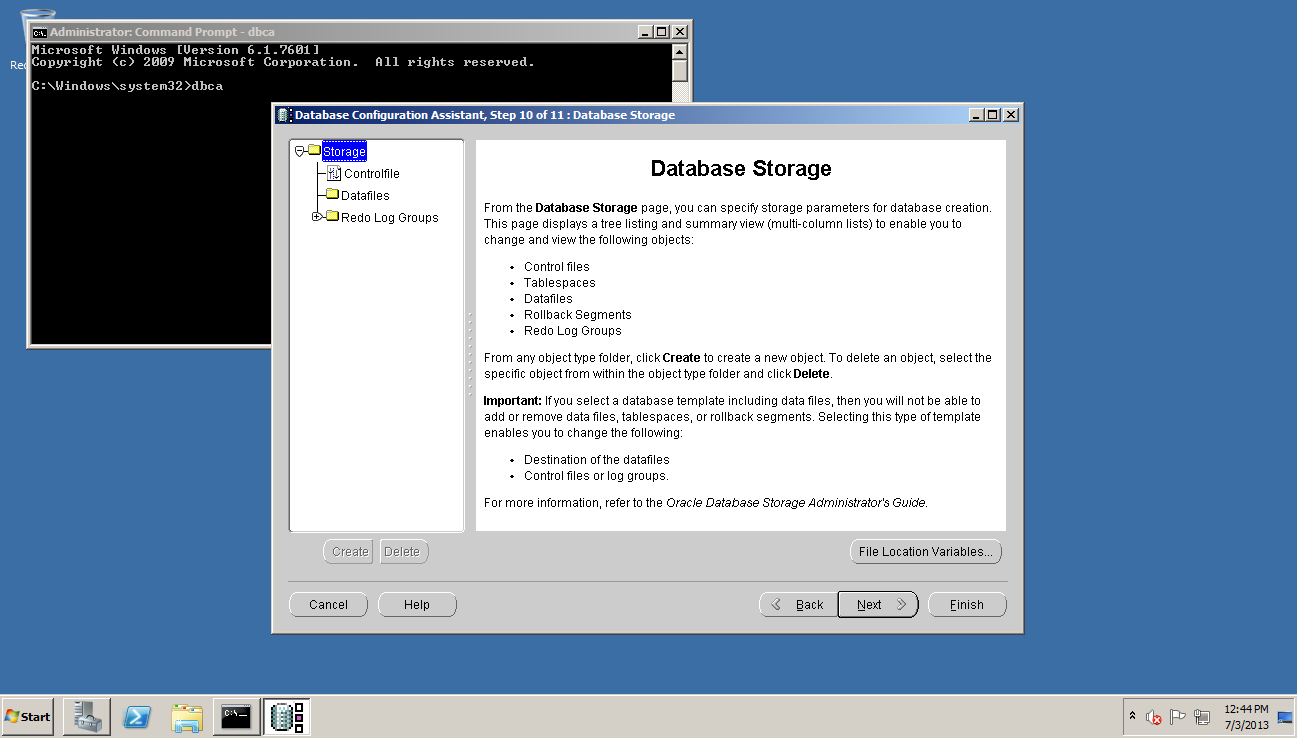
At the next screen select ASM for the storage, and check that the Oracle managed files are going to a valid ASM disk group.

At the next screen check the location for the Fast Recovery Area.

At the next screen check Sample Schemas. Click Next.

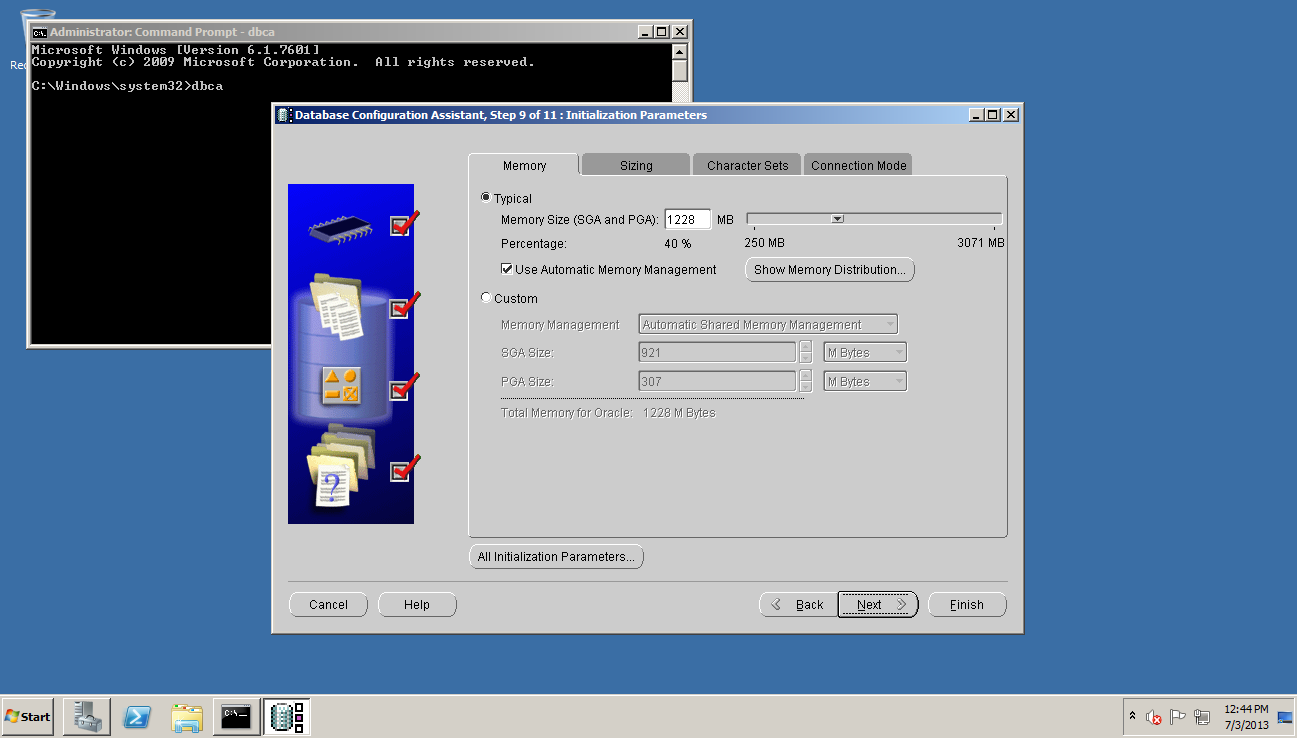
Check the SGA and PGA sizes. Click Next.
Review the options selected. If all looks okay then click Finish.
Ensure that “Create Database” is checked. Then click Finish.

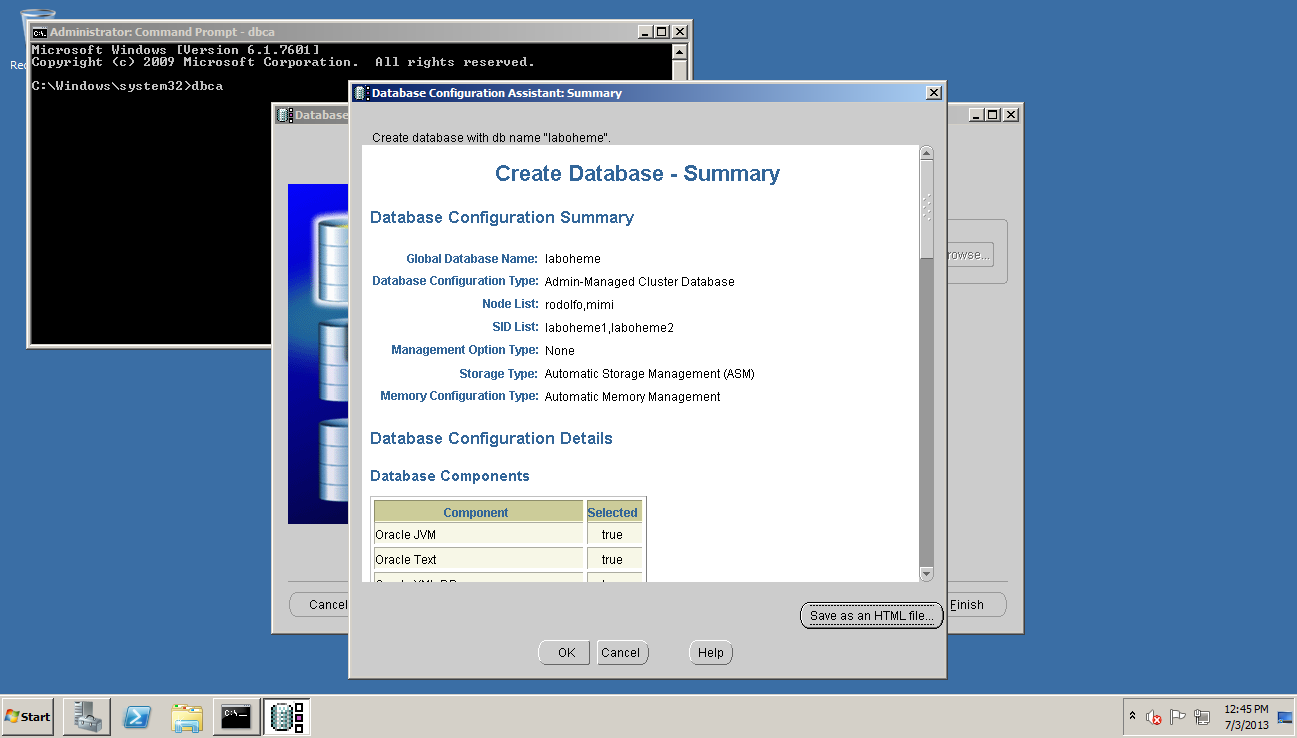
DBCA gives us another summary. Click OK.
The creation process is usually very quick.
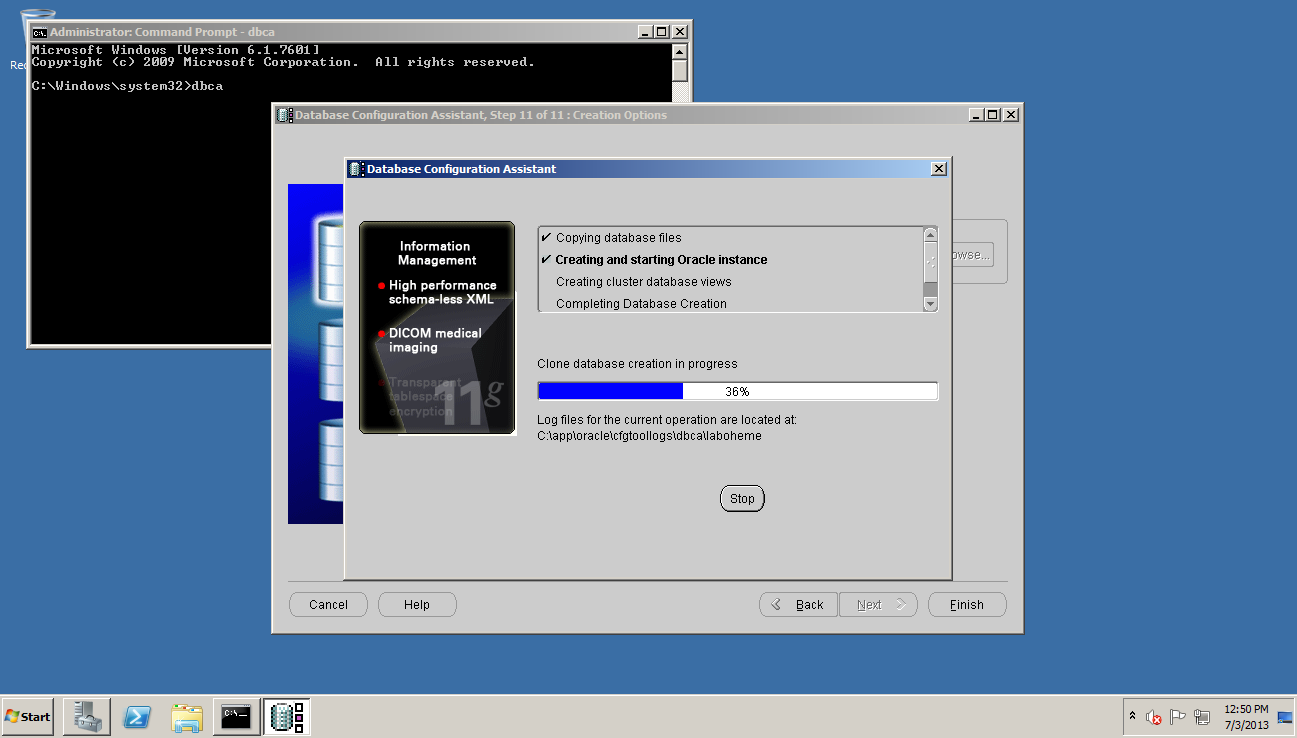
Success!

Congratulations, you have an operational Oracle RAC database on Windows 2008!
| Article Quick Navigation | ||
|---|---|---|
| Previous Step | Main Index | Next Step |
 the gruffdba