
Time Required: 60 minutes
Class Materials:
- none
Next we are going to clone Ruggero to create the second node of our 12c RAC Magda.
Shut down the VM and go to the VMware interface.
Right click on the Ruggero VM and select Manage->Clone. This will pull up the cloning dialog box. If you have been making clones of the machine throughout the previous parts then you will already be familiar with this dialog.
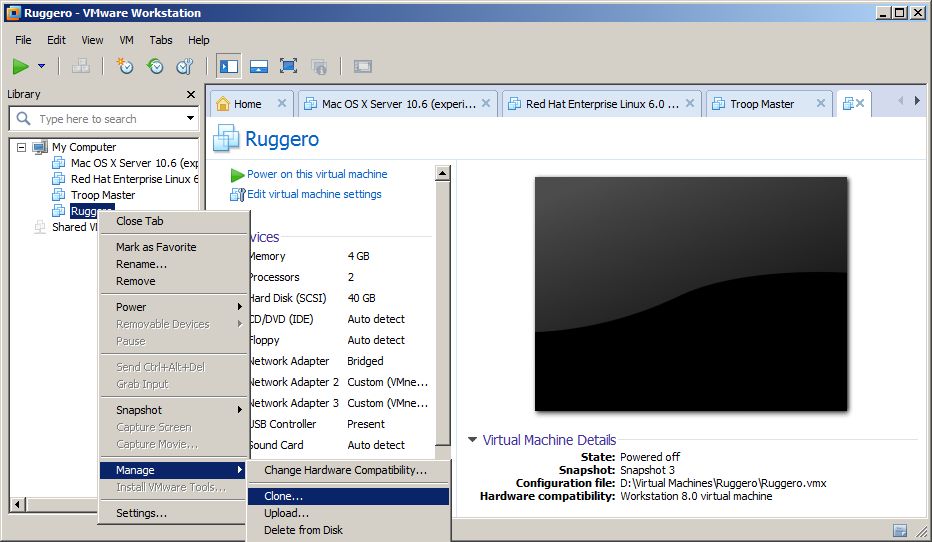
I recommend you select Create a full Clone.
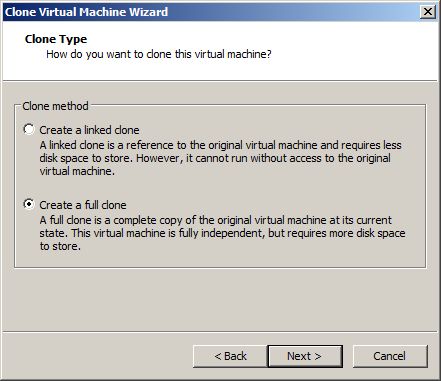
VMware will prompt you for a name for your new clone. Enter the name you want to use for the second machine, and check that the VMware files are being written to a suitable directory. If this all looks okay, then click Finish
Keep a note on disk free space, since full clones can consume disk space fast.
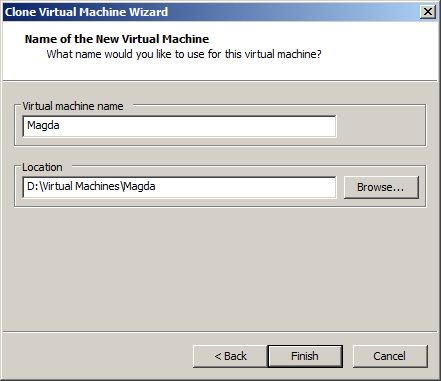
Once cloned we need to generate new MAC addresses for our newly cloned VM. Using the VMware interface, edit the Virtual Machine Settings and select the Network Adapter – Bridged. Click Advanced to bring up the Network Adapter Advanced Settings diaglog box.
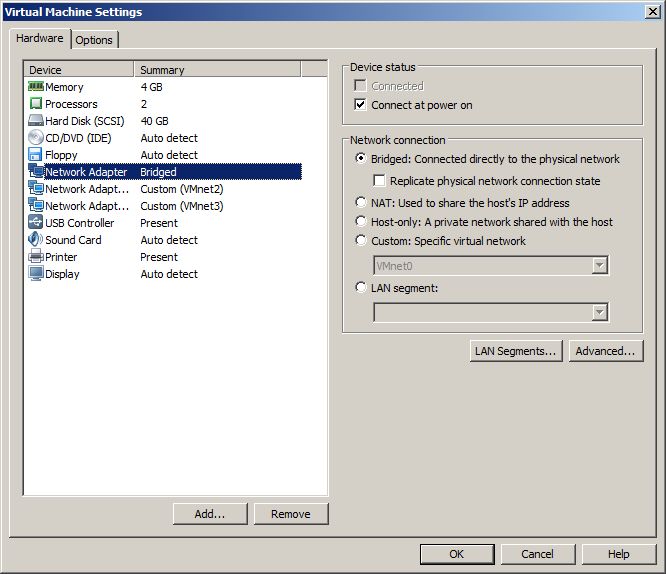
Click the Generate button to generate a new MAC address for the clone. Make sure you have selected Magda and not Ruggero when you do this, or will you break the NIC on Ruggero.
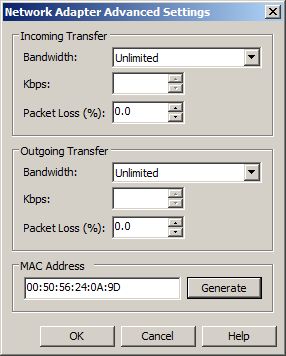
MAC addresses ensure unique NIC identifier on a single host. Although strictly speaking, two machines on the same network can have NICs with the same MAC address this is rarely used and may cause networking problems later on.
Repeat the process for Network Adapter – Custom (VMnet2) and Network Adapter – Custom (VMnet3). You do not need to record the MAC addresses generated, we will grab them from inside Linux.
Leave Ruggero powered off and startup Magda. We need to change the identity and IP addresses of Magda to give her a unique identity.
The files we need to edit are as follows:
- /etc/sysconfig/network
- /etc/sysconfig/network-scripts/eth-Public
- /etc/sysconfig/network-scripts/eth-Private
- /etc/named.conf
- /var/named/hadesnet.zone
Log in as root and edit the first file, setting the hostname to magda. Note that the root command prompt will continue to show ruggero as the host name until you reboot.
[root@ruggero etc]# cat /etc/sysconfig/network
NETWORKING=yes
HOSTNAME=magda.hadesnet
Next we are going to fix the DNS server, which still thinks it is on Ruggero. Edit the file /etc/named.conf and change the IP address to 10.10.1.120.
options {
	listen-on port 53 { 127.0.0.1; 10.10.1.120; };
	listen-on-v6 port 53 { ::1; };
	directory 	"/var/named";
Now we are going to update the /var/named/hadesnet.zone file and change the host name listed there:
[root@ruggero etc]# cat /var/named/hadesnet.zone
$TTL 86400
@   IN  SOA     magda.hadesnet. root.hadesnet. (
        2013042201  ;Serial
        3600        ;Refresh
        1800        ;Retry
        604800      ;Expire
        86400       ;Minimum TTL
)
@	IN  NS      larondine-scan.hadesnet.
larondine-scan     IN  A    10.10.1.112
larondine-scan     IN  A    10.10.1.122
Next we are going to edit the network adapter files. After we cloned the VM we generated new MAC address for our three NICs – the bridged adapter and the ones on VMnet2 and VMnet3.
We now need to see what those MAC addresses are and which networks they are connected to.
Use the following command to determine this:
[root@ruggero network-scripts]# ifconfig -a | egrep HWaddr -A 1
eth3      Link encap:Ethernet  HWaddr 00:50:56:21:A1:5D
          inet addr:192.168.0.16  Bcast:192.168.0.255  Mask:255.255.255.0
--
eth4      Link encap:Ethernet  HWaddr 00:50:56:2B:99:E3
          inet addr:10.10.2.139  Bcast:10.10.2.255  Mask:255.255.255.0
--
eth5      Link encap:Ethernet  HWaddr 00:50:56:30:AB:A7
          inet addr:10.10.1.141  Bcast:10.10.1.255  Mask:255.255.255.0
In the above output we can see Linux has created an eth3 adapter with a MAC address of 00:50:56:21:A1:5D. As this adapter has an IP address of 192.168.0.16, from the subnet we can conclude this adapter is our bridged adapter.
Looking at the IP addresses for eth4 and eth5 we can determine that those are VMnet3 and VMnet2 respectively, as they have IP addresses that correspond to those subnets.
DHCP has assigned automatic IP addresses, but we need to make these static, as well as disable DNS on the bridged adapter again.
Let’s start with VMnet3 which we call our cluster private network. We are going to edit the ifcfg-Private file in /etc/sysconfig/network-scripts, and replace the MAC address listed there with the one Linux reported in the command above – 00:50:56:2B:99:E3.
We will also replace the IP address with the one we selected for Magda’s private interconnect – 10.10.2.120.
The final file should look as follows:
[root@ruggero network-scripts]# cat /etc/sysconfig/network-scripts/ifcfg-Private
BOOTPROTO=none
PREFIX=24
DEFROUTE=yes
IPADDR=10.10.2.120
IPV4_FAILURE_FATAL=yes
IPV6INIT=no
NAME=Private
ONBOOT=yes
TYPE=Ethernet
HWADDR=00:50:56:2B:99:E3
In the above example I have bolded the lines that changed, again you should replace the MAC address shown with whatever your Linux OS reports.
Next we are going to repeat the same proces for the cluster public network on VMnet2. Since VMnet2 uses a subnet of 10.10.1.x, we can determine that the MAC address of the NIC on VMnet2 is 00:50:56:30:AB:A7 on eth5.
We now need to edit the file /etc/sysconfig/network-scripts/ifcfg-Public, and replace the MAC address and the IP addresses as follows:
BOOTPROTO=none
PREFIX=24
DEFROUTE=yes
DNS1=10.10.1.120
DNS2=75.75.75.75
DOMAIN=hadesnet
IPADDR=10.10.1.120
IPV4_FAILURE_FATAL=yes
IPV6INIT=no
NAME=Public
ONBOOT=yes
TYPE=Ethernet
HWADDR=00:50:56:30:AB:A7
Again I have bolded the lines changed. You may notice that we have not only replaced the IP address, but also the primary DNS server, as we will run a DNS server on Magda as well.
Next we are going to change the MAC address of the bridged adapter configuration at /etc/sysconfig/network-scripts/ifcfg-eth0 as follows:
[root@ruggero network-scripts]# cat /etc/sysconfig/network-scripts/ifcfg-eth0
DEVICE="eth0"
BOOTPROTO="dhcp"
HWADDR="00:50:56:21:A1:5D"
IPV6INIT="yes"
NM_CONTROLLED="yes"
ONBOOT="yes"
TYPE="Ethernet"
PEERDNS=no
The PEERDNS=no directive is what disables DNS lookups on the bridged adapter, allowing the DNS settings on the Public adapter to take precedence.
Note I also deleted the UUID directive.
Now to test the changes, we need to restart the networking service of Linux:
[root@ruggero network-scripts]# service network restart
Shutting down loopback interface:                          [  OK  ]
Bringing up loopback interface:                            [  OK  ]
Bringing up interface Private:  Active connection state: activating
Active connection path: /org/freedesktop/NetworkManager/ActiveConnection/3
state: activated
Connection activated
                                                           [  OK  ]
Bringing up interface Public:  Active connection state: activated
Active connection path: /org/freedesktop/NetworkManager/ActiveConnection/4
                                                           [  OK  ]
Bringing up interface eth0:  Active connection state: activating
Active connection path: /org/freedesktop/NetworkManager/ActiveConnection/5
state: activated
Connection activated
                                                           [  OK  ]
We should also restart the DNS server:
[root@ruggero network-scripts]# service named restart
Stopping named: .                                          [  OK  ]
Starting named:                                            [  OK  ]
[root@ruggero network-scripts]#
Now let’s check that our network shows the expected IP addresses:
[root@ruggero network-scripts]# ifconfig -a | egrep HWaddr -A 1
eth3      Link encap:Ethernet  HWaddr 00:50:56:21:A1:5D
          inet addr:192.168.0.16  Bcast:192.168.0.255  Mask:255.255.255.0
--
eth4      Link encap:Ethernet  HWaddr 00:50:56:2B:99:E3
          inet addr:10.10.2.120  Bcast:10.10.2.255  Mask:255.255.255.0
--
eth5      Link encap:Ethernet  HWaddr 00:50:56:30:AB:A7
          inet addr:10.10.1.120  Bcast:10.10.1.255  Mask:255.255.255.0
And that the resolv.conf file looks correct:
[root@ruggero network-scripts]# cat /etc/resolv.conf
# Generated by NetworkManager
search hadesnet
nameserver 10.10.1.120
nameserver 75.75.75.75
Finally let’s check that DNS is able to resolve our SCAN address:
[root@ruggero network-scripts]# nslookup larondine-scan.hadesnet
Server:		10.10.1.120
Address:	10.10.1.120#53

Name:	larondine-scan.hadesnet
Address: 10.10.1.122
Name:	larondine-scan.hadesnet
Address: 10.10.1.112
Reboot Magda. When she comes back up she should report the correct host name at the Linux prompt. When Magda has fully booted, re-start Ruggero.
| Article Quick Navigation | ||
|---|---|---|
| Previous Step | Main Index | Next Step |
 the gruffdba
Hello , when I install oracle 12c rac , I got this error :
Node Connectivity – This is a prerequisite condition to test whether connectivity exists amongst all the nodes. The connectivity is being tested for the subnets “192.0.2.0,10.0.0.0” Error:
–
PRVF-4090 : Node connectivity failed for interface “*” – Cause: Unable to verify connectivity to the interface indicated using the “OS ping” utility. – Action: Verify that the interface indicated is available.
–
PRVF-4090 : Node connectivity failed for interface “*” – Cause: Unable to verify connectivity to the interface indicated using the “OS ping” utility. – Action: Verify that the interface indicated is available.
Check Failed on Nodes: [rac2, rac1]
Verification result of failed node: rac2 Details:
–
PRVG-11050 : No matching interfaces “*” for subnet “192.0.2.0” on nodes “rac1,rac2” – Cause: The interfaces classified as cluster interconnect or public were not found on the specified subnet on the nodes. – Action: Ensure that at least one interface with specified name is on the specified subnet on each node of Cluster.
Back to Top
Verification result of failed node: rac1 Details:
–
PRVG-11050 : No matching interfaces “*” for subnet “192.0.2.0” on nodes “rac1,rac2” – Cause: The interfaces classified as cluster interconnect or public were not found on the specified subnet on the nodes. – Action: Ensure that at least one interface with specified name is on the specified subnet on each node of Cluster.
Back to Top
Can you help me to fix it ? ths …
Hello Jc
I have the same probleme.
How did you resolve them Please
Thanks