
This is a quick post to demonstrate how Protection Policies can be used with Volume Groups to protect Oracle databases on Powerstore.
A Protection Policy is a powerful tool that the Powerstore storage array offers to protect application data, by automatically replicating the data to a second Powerstore which might be across the data center, or across the country. And it can also protect the application data by generating snapshot copies of the data at a pre-determined time, or on a routine schedule.
Such copies can then be set to auto-expire after a given amount of time.
For DBAs, this means that the entire set of critical ASM diskgroups, or file systems that support the database can be automatically replicated and/or snapshot-copied, providing an simple and robust method to restore database operations in the event of a system failure or cyber attack.
Since many DBAs prefer Dataguard to storage based replication, this post will focus on the use of Protection Policies to deliver automated snapshot copies of our ASM diskgroups, and how we can use these to recover from failure or attack.
A Protect Policy can be assigned to an individual volume or disk, but since most critical Oracle databases reply on a multitude of ASM disks and diskgroups, in most practical cases, the DBA or storage infrastructure will need to establish a volume group for the database as a first step.
If you want to learn more about volume groups and using them with ASM diskgroup, check out the blog post here:
With a volume group established, we can now define a protection policy. From the Powerstore interface, select Protection -> Protection Policies.
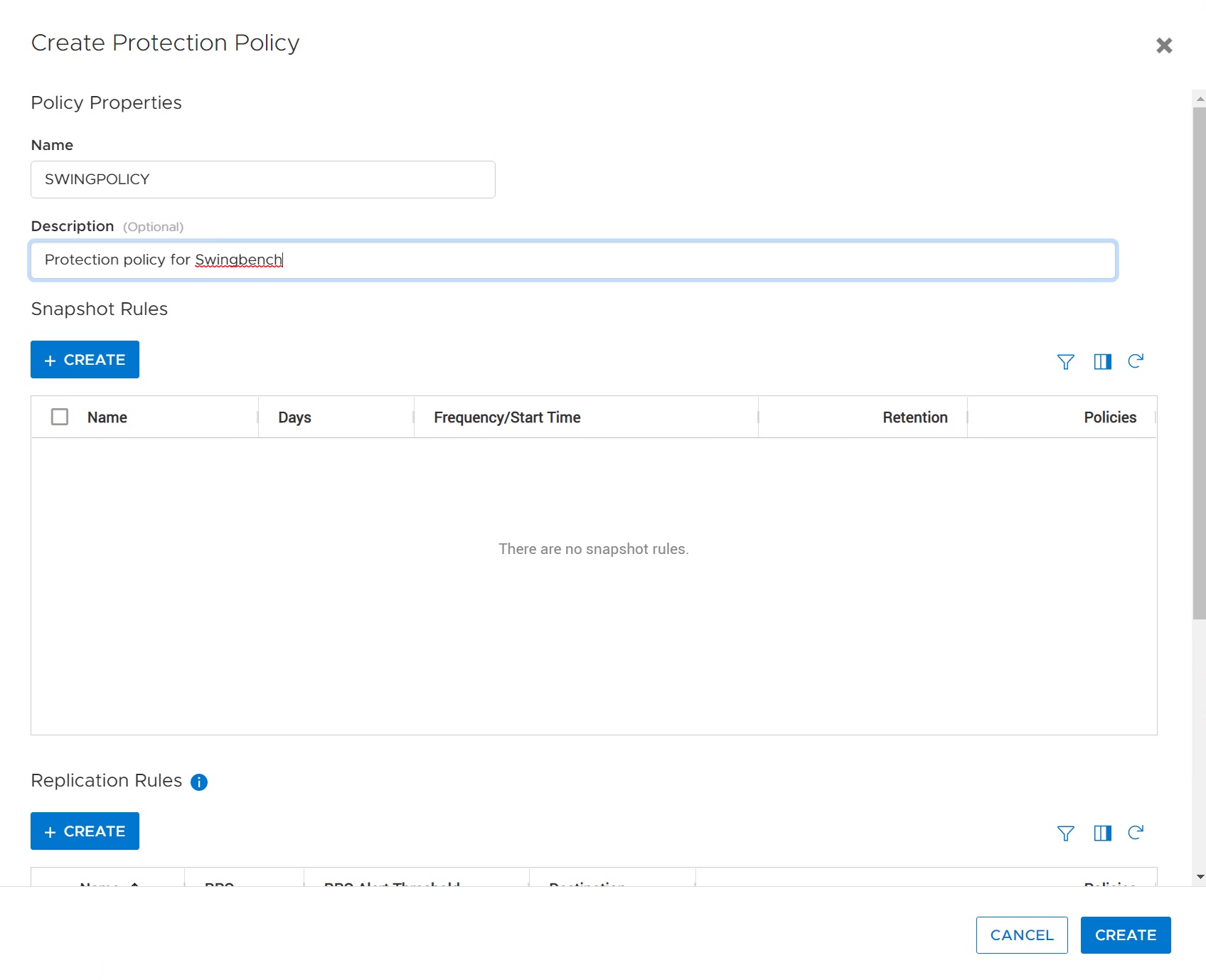
In my example I am creating a new policy called SWINGPOLICY, and I have added a description so I don’t forget what it is for.
With a new policy added we can add snapshot rules and replication rules. As stated I am not going to explore Replication Rules in this post, so click the CREATE button under Snapshot Rules.

From this screen we can define when a snapshot of the volume group will take place. We’ve defined it to happen every day of the week, and every 6 hours.
The snapshots so generated will be kept for 7 days and then deleted.
This will provide us with the ability to restore all of our database’s ASM diskgroups to any point in the last 7 days at 6 hourly intervals.

We’ve defined a protection policy, and within that defined snapshot rules, but we still need to assign our new protection policy to our volume group.
Select Storage -> Volume Groups and then highlight the volume group of the database you want to protect.
Then select Protect -> Assign Protection Policy.

Highlight the policy we want to apply to the O1SWINGVG volume group and click APPLY.

Check the Volume Group menu to confirm the policy was applied.
Now the Powerstore will take snapshots of the volume group every 6 hours automatically.

In the event that we have a problem and we need to restore our volume group we can use the same Volume Group menu, highlighting the volume group we need to restore. Select Protect -> Restore from Snapshot.
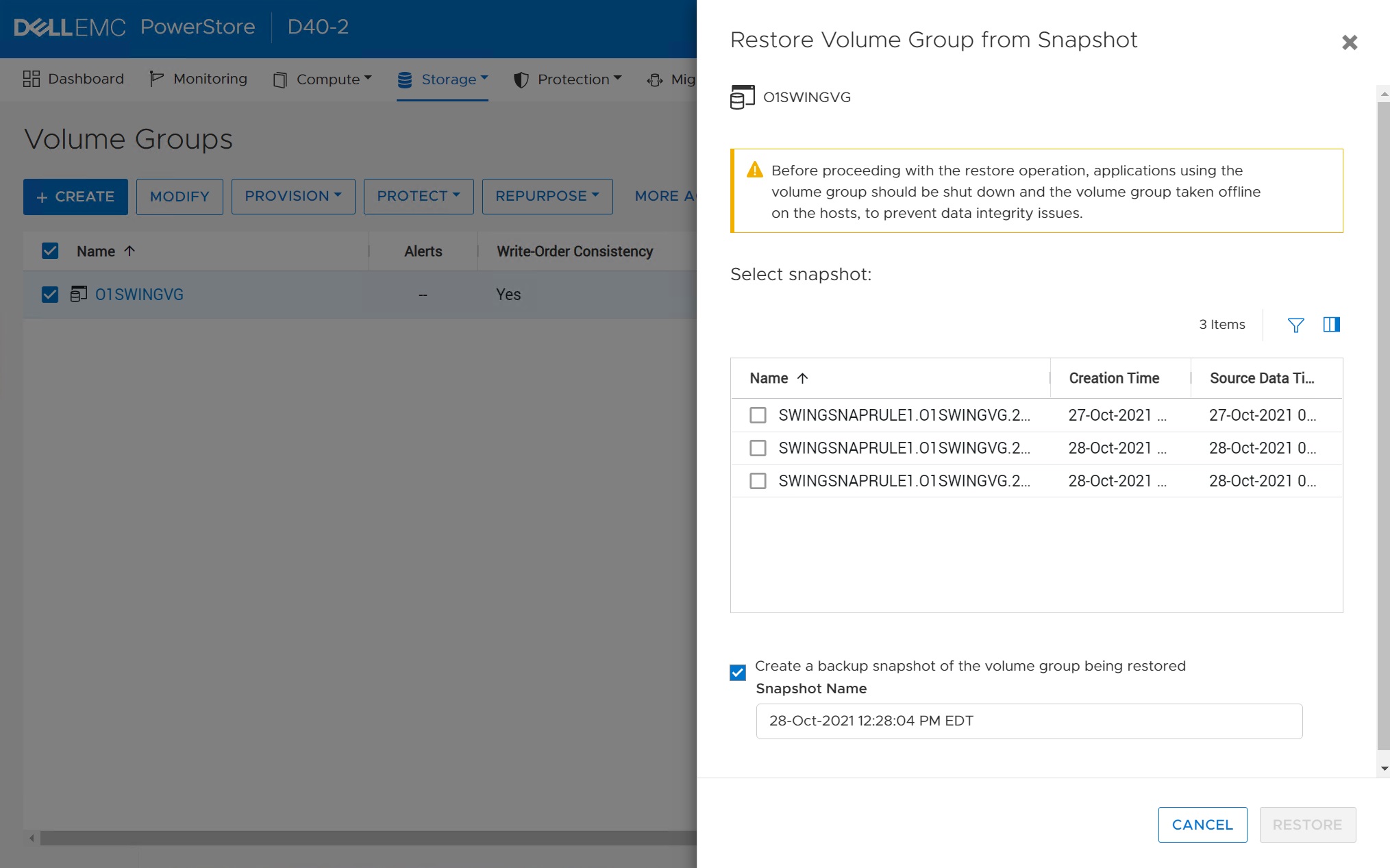
Next Powerstore will show us the snapshots it has of the volume group.
We can select the snapshot we need, and then Powerstore will use it to restore all of the ASM disks to that point in time.
Note that Powerstore can also create a snapshot of the current state of the volume group before it restores it to the previous point in time, allowing the DBA the option to come back to the current state if the restore-from-snapshot does not deliver the outcome expected.
As with the snapshot volume group refresh process, the ASM diskgroups should be unmounted before executing the restore-from-snapshot.
 the gruffdba