
Time Required: 60 minutes
Class Materials:
- none
Next we are going to give our two new VMs identities.
As discussed in the previous section, I have decided to name my VMs Orpheus and Eurydice. In this section we will give each machine a hostname plus static IP address on the VMnet2 and VMnet3 networks we created earlier.
This will allow our two operatic lovers to communicate both publicly and privately.
Boot up both VMs and log in as root. On the Linux desktop, use the mouse to select the drop down menus as follows:
System->Administration->Network
This access the Network control panel. As you can see we see three network devices identified by Linux;
- eth0
- eth1
- eth2
eth0 adapter is the bridged network adapter that connects us to the outside world. We will leave that completely alone.
eth1 is using VMnet2, the network we intend to be our public RAC network.
eth2 is using VMnet3 which is what we plan to use for private cluster traffic.

Select the eth1 adapter and click the edit button to bring up the Ethernet Device control panel. We will select “Statically set IP addresses” to assign a static IP address to this NIC. We will assign IP address 10.10.1.10.

Make sure that “Activate device when computer starts” remains enabled.
Now repeat the above steps for eth2, this time statically assigning the IP address 10.10.2.10

Make sure you save your chances before closing the Network Configuration editor window
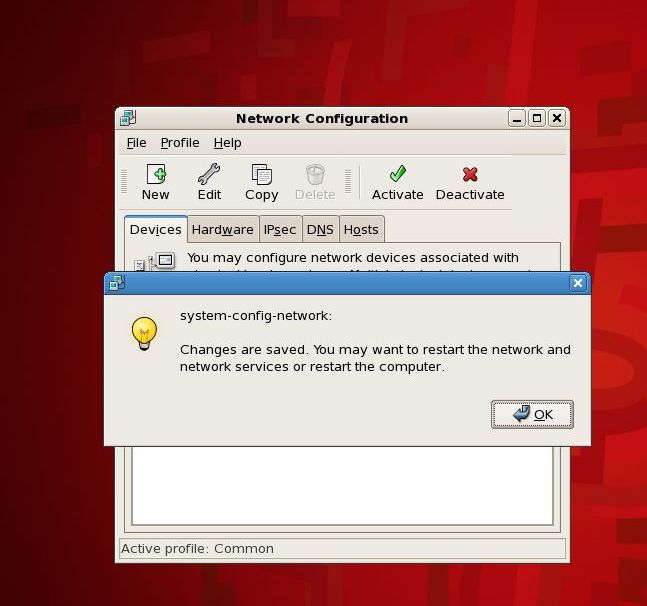
Now move over to Eurydice and repeat the above steps, assigning eth1 the IP address 10.10.1.20, and eth2 the address 10.10.2.20.
When you have completed this step, the following IP assignments should be set:
| Orpheus | Eurydice | |
| eth1 | 10.10.1.10 | 10.10.1.20 |
| eth2 | 10.10.2.10 | 10.10.2.20 |
Now we will assign host names to both machines. RHEL 5.5 stores the host name in the file /etc/sysconfig/network. From the root account, edit this file and change the host name on each machine:
For Orpheus:
[root@localhost ~]# cat /etc/sysconfig/network
NETWORKING=yes
NETWORKING_IPV6=no
HOSTNAME=orpheus.hadesnet
For Eurydice:
[root@localhost ~]# cat /etc/sysconfig/network
NETWORKING=yes
NETWORKING_IPV6=no
HOSTNAME=eurydice.hadesnet
Now would be a good time to reboot both VMs and make sure everything starts back up as expected.
When the machines have rebooted, starting a terminal window should show us the new machine name:
[root@orpheus ~]# ifconfig -a
eth0      Link encap:Ethernet  HWaddr 00:0C:29:4A:B5:D1
          inet addr:192.168.0.93  Bcast:192.168.0.255  Mask:255.255.255.0
          inet6 addr: fe80::20c:29ff:fe4a:b5d1/64 Scope:Link
          UP BROADCAST RUNNING MULTICAST  MTU:1500  Metric:1
          RX packets:1209 errors:0 dropped:0 overruns:0 frame:0
          TX packets:73 errors:0 dropped:0 overruns:0 carrier:0
          collisions:0 txqueuelen:1000
          RX bytes:148948 (145.4 KiB)  TX bytes:13574 (13.2 KiB)

eth1      Link encap:Ethernet  HWaddr 00:0C:29:4A:B5:DB
          inet addr:10.10.1.10  Bcast:10.10.1.255  Mask:255.255.255.0
          inet6 addr: fe80::20c:29ff:fe4a:b5db/64 Scope:Link
          UP BROADCAST RUNNING MULTICAST  MTU:1500  Metric:1
          RX packets:453 errors:0 dropped:0 overruns:0 frame:0
          TX packets:44 errors:0 dropped:0 overruns:0 carrier:0
          collisions:0 txqueuelen:1000
          RX bytes:42745 (41.7 KiB)  TX bytes:6310 (6.1 KiB)

eth2      Link encap:Ethernet  HWaddr 00:0C:29:4A:B5:E5
          inet addr:10.10.2.10  Bcast:10.10.2.255  Mask:255.255.255.0
          inet6 addr: fe80::20c:29ff:fe4a:b5e5/64 Scope:Link
          UP BROADCAST RUNNING MULTICAST  MTU:1500  Metric:1
          RX packets:450 errors:0 dropped:0 overruns:0 frame:0
          TX packets:46 errors:0 dropped:0 overruns:0 carrier:0
          collisions:0 txqueuelen:1000
          RX bytes:42469 (41.4 KiB)  TX bytes:6464 (6.3 KiB)
The ifconfig command allows us to see what IP addresses have been assigned to our NIC cards. We can see in the example above that the static IPs we assigned have worked.
Repeat the command on Eurydice and check that the static IP addresses have worked there too.
Next we will make each machine aware of the other’s IP addresses. Most RAC install blogs suggest you edit the local /etc/hosts file.
That would work great if it was not for the introduction of a hard requirement in 11gR2 for a SCAN address. As mentioned back in Part II, a SCAN address is a crude round-robin IP address that allows clients to address all nodes of a RAC cluster through a single name.
There is no way to implement SCAN using a static hosts file, so back in Part II we loaded the RPM we need to stand up a DNS server. In case you missed it, you need to go back to the install media and load the following RPM:
[root@localhost ~]# cd "/media/RHEL_5.5 x86_64 DVD/Server"

[root@localhost Server]# pwd
 /media/RHEL_5.5 x86_64 DVD/Server

[root@localhost Server]# rpm -ivh bind-9.3.6-4.P1.el5_4.2.x86_64.rpm
warning: bind-9.3.6-4.P1.el5_4.2.x86_64.rpm: Header V3 DSA signature: NOKEY, key ID 37017186
Preparing...                ########################################### [100%]
   1:bind
Now we are going to configure DNS for our RAC cluster.
First, we need to create a /etc/named.conf file. You only need to do this on one node, but best practice would be to do it on both. Create the /etc/named.conf file as follows:
[root@orpheus ~]# cat /etc/named.conf

options {
        directory "/var/named";
        dump-file "/var/named/data/cache_dump.db";
        statistics-file "/var/named/data/named_stats.txt";
        forwarders { 192.168.1.1; };
};
include "/etc/rndc.key";

zone "hadesnet" IN {
type master;
file "hadesnet.zone";
allow-update { none; };
};
In the above example I have created my domain name as hadesnet. Your example will need to reflect what domain name you have or wish to use.
I am also forwarding names I cannot resolve to address 192.168.1.1 which is the DNS server on most home networks. If yours differs then you will need to change this if you wish to be able to talk to the outside internet from inside your RAC VM.
Note that since I am hard-coding this address, if my network settings change as I travel, or I log into a VPN, then my ability to talk to the outside internet from inside my VM will fail. That’s okay, I don’t plan on doing alot of surfing with Orpheus or Eurydice.
The /etc/named.conf file references another file called hadesnet.zone. This is where I am going to define IP addresses for the hadesnet domain.
We have already defined IP address for eth1 and eth2 and now we will add IP addresses for the VIPs and SCAN addresses. To summarize, our IP assignments will look as follows:
| Orpheus | Eurydice | |
| Public IP | 10.10.1.10 | 10.10.1.20 |
| Private IP | 10.10.2.10 | 10.10.2.20 |
| VIP IP | 10.10.1.11 | 10.10.1.21 |
| SCAN IP | 10.10.1.12 | 10.10.1.22 |
The hadesnet.zone file should be located in /var/named and should look as follows:
[root@orpheus Server]# cat /var/named/hadesnet.zone
$TTL  86400
@ IN SOA      hadesnet. hadesnet.(
42          ; serial (d. adams)
3H          ; refresh
15M         ; retry
1W          ; expiry
1D )        ; minimum

hadesnet.                     IN NS   10.10.1.20
localhost                     IN A    127.0.0.1
orpheus.hadesnet.             IN A    10.10.1.10
eurydice.hadesnet.            IN A    10.10.1.20
orpheus-vip.hadesnet.         IN A    10.10.1.11
eurydice-vip.hadesnet.        IN A    10.10.1.21
underworld-scan.hadesnet.     IN A    10.10.1.12
underworld-scan.hadesnet.     IN A    10.10.1.22
In the above example we have defined the IP addresses for Orpheus and Eurydice, as well as IP address for the VIPs and for the SCAN addresses.
Again, best practice would be to replicate this file on both Orpheus and Eurydice, but this is not strictly necessary.
Note that the SCAN address is defined twice, with two different addresses. This is what enables the round-robin functionality as we will see in a moment.
Now we need to add Orpheus, and possibly Eurydice to a list of valid DNS servers for our two Linux VMs. We do this by adding them to the /etc/resolv.conf file on both machines.
In the following example, I am going to use both Orpheus and Eurydice as DNS servers. That way if one node goes down, I can still operate on the other alone.
[root@orpheus ~]# cat /etc/resolv.conf

nameserver 10.10.1.10     # orpheus DNS server
nameserver 10.10.1.20     # eurydice DNS server
nameserver 192.168.1.1    # Primary DNS in the domain
search hadesnet # Local Domain
Now we have to make an adjustment to our ethernet adapter settings. If not, the /etc/resolv.conf file will get overwritten.
In the /etc/sysconfig/network-scripts directory of both machines, you will find these three files.
- ifcfg-eth0
- ifcfg-eth1
- ifcfg-eth2
For each file on each machine you need to add or set PEERDNS=no. If the directive is not already in the file then add it.
For example, my ifcfg-eth1 should look as follows:
# Intel Corporation 82545EM Gigabit Ethernet Controller (Copper)
DEVICE=eth1
BOOTPROTO=none
ONBOOT=yes
HWADDR=00:0c:29:4a:b5:db
NETMASK=255.255.255.0
IPADDR=10.10.1.10
TYPE=Ethernet
USERCTL=no
IPV6INIT=no
PEERDNS=no
Once this is done, check the /etc/resolv.conf file once again to make sure it did get overwritten while we were turning off the PEERDNS settings.
Now we can start our DNS service:
[root@orpheus ~]# service named start
Starting named:                                            [  OK  ]
We also need to set the DNS service to auto-start on reboot:
[root@orpheus ~]# chkconfig named on
Now let’s check we can lookup the IP addresses:
[root@orpheus ~]# nslookup eurydice
Server:         10.10.1.10
Address:        10.10.1.10#53

Name:   eurydice.hadesnet
Address: 10.10.1.20

[root@orpheus ~]# nslookup eurydice-vip
Server:         10.10.1.10
Address:        10.10.1.10#53

Name:   eurydice-vip.hadesnet
Address: 10.10.1.21
Now we can lookup the SCAN address we defined:
[root@orpheus ~]# nslookup underworld-scan
Server:         10.10.1.10
Address:        10.10.1.10#53

Name:   underworld-scan.hadesnet
Address: 10.10.1.22
Name:   underworld-scan.hadesnet
Address: 10.10.1.12
We can see above that the SCAN address is yielding both 10.10.1.12 and 10.10.1.22. This is what we need to make SCAN work.
Whereas the DNS system works very well here, it can also be rather slow. I recommend you also add the public and private IP addresses of the cluster to the /etc/hosts file to faciliate faster lookups:
The /etc/hosts file will be identical on both machines:
[root@localhost ~]# cat /etc/hosts
# Do not remove the following line, or various programs
# that require network functionality will fail.
127.0.0.1 localhost.localdomain localhost
::1 localhost6.localdomain6 localhost6

10.10.1.10 orpheus orpheus.hadesnet
10.10.1.20 eurydice eurydice.hadesnet
10.10.2.10 orpheus-priv orpheus-priv.hadesnet
10.10.2.20 eurydice-priv eurydice-priv.hadesnet
Finally we need to set up a NTP service to synchronize time between our cluster nodes. Unless we have a working NTP daemon, the Oracle installer will fail.
Luckily Red Hat has kindly supplied us with most of what we need already.
Login in to Orpheus as root and check if the NTP service is running:
[root@orpheus ~]# pgrep ntpd
If this command returns a process ID then NTP is running. If it is running we need to shut it down so we can make some adjustments:
[root@orpheus etc]# service ntpd stop
Now we are going to modify the ntp.conf file. Basically we are going to set up Eurydice as the NTP server for Orpheus, and vice versa. Crude, but this will keep our two RAC nodes in time synch with each other.
First, we will move the original ntp.conf file out of the way.
[root@orpheus ~]# cd /etc
[root@orpheus etc]# mv ntp.conf ntp.conf.orig
Now we will create a new ntp.conf file as follows:
[root@orpheus etc]# cat /etc/ntp.conf
# --- GENERAL CONFIGURATION ---
server  orpheus
server  eurydice
fudge   orpheus stratum 10

# Drift file.

driftfile /etc/ntp/drift
Now we change the ownership of the /etc/ntp directory:
[root@orpheus etc]# chown ntp:ntp /etc/ntp
Next we need to add the slewing option – this prevents the NTP daemon from resetting the clock in the event of a gap occuring. Instead NTP will gradually play catch up, or slew back into sync. To add the slewing option we need to edit the /etc/sysconfig/ntpd file and add the -x option.
By default, the file will look like this:
# Drop root to id 'ntp:ntp' by default.
OPTIONS="-u ntp:ntp -p /var/run/ntpd.pid"

# Set to 'yes' to sync hw clock after successful ntpdate
SYNC_HWCLOCK=no

# Additional options for ntpdate
NTPDATE_OPTIONS=""
We are going to update the file where the OPTIONS are set as follows:
# Drop root to id 'ntp:ntp' by default.
OPTIONS="-x -u ntp:ntp -p /var/run/ntpd.pid"

# Set to 'yes' to sync hw clock after successful ntpdate
SYNC_HWCLOCK=no

# Additional options for ntpdate
NTPDATE_OPTIONS=""
Now we can restart the NTP service:
[root@orpheus etc]# service ntpd start
Starting ntpd: [  OK  ]
To check the operation of our new NTP settings, we can execute the following command:
[root@orpheus etc]# ntpq -p
     remote           refid      st t when poll reach   delay   offset  jitter
==============================================================================
 orpheus         .INIT.          16 u    -   64    0    0.000    0.000   0.000
 eurydice        .INIT.          16 u    -   64    0    0.000    0.000   0.000
Now we need to make the NTP service auto-start on reboot:
[root@orpheus etc]# chkconfig ntpd on
Repeat these steps on Eurydice, but on Eurydice the /etc/ntp.conf file will look as follows:
# --- GENERAL CONFIGURATION ---
server  orpheus
server  eurydice
fudge   eurydice stratum 10

# Drift file.

driftfile /etc/ntp/drift
| Article Quick Navigation | ||
|---|---|---|
| Previous Step | Main Index | Next Step |
 the gruffdba
Hi,
Following command:
[root@orpheus Desktop]# service named start
Gave me an error:
Starting named:
Error in named configuration:
hadesnet.zone:9: NS record ‘10.10.1.10’ appears to be an address
zone hadesnet/IN: NS ‘10.10.1.10.hadesnet’ has no address records (A or AAAA)
zone hadesnet/IN: not loaded due to errors.
_default/hadesnet/IN: bad zone
[FAILED]
thanks in advance
Just put . after the IN NS in *.zone file (hadesnet. IN NS 10.10.1.20. )
$TTL 86400
@ IN SOA rac.rac.( # you have to put space like ” @ IN SOA rac. rac.( ”
3H ; refresh
15M ; retry
1W ; expiry
1D ) ; minimum
rac. IN NS 10.10.1.20
localhost IN A 127.0.0.1
rac1.rac. IN A 10.10.1.10
rac2.rac. IN A 10.10.1.20
rac1-vip.rac. IN A 10.10.1.11
rac2-vip.rac. IN A 10.10.1.21
underworld-scan.rac. IN A 10.10.1.12
underworld-scan.rac. IN A 10.10.1.22
~
~
HI … I followed the steps mentioned by you but my named services are failing to start:
Please refer below details of my settings which i did as per your blog:
I an in process of upgrading cluster from 1.2.0.5 to 11gr2.My OS is Redhat linux 5.3 For the same i am trying to configure DNS and scan .As i dont’ have much idea about network so
.
I followed the link for configuring DNS Oracle 11gR2 2-node RAC on VMWare Workstation 8 – Part VII | The Gruff DBA . As per link i installed below rpms
[root@nod1 log]# rpm -qa bind*
bind-libs-9.3.4-10.P1.el5
bind-utils-9.3.4-10.P1.el5
bind-chroot-9.3.4-10.P1.el5
bind-9.3.4-10.P1.el5
[root@nod1 log]#
root@nod1 log]# rpm -qa cach*
caching-nameserver-9.3.4-10.P1.el5
[root@nod2 named]# more /etc/named.conf—> Named.conf file from nod2
options {
directory “/var/named”;
dump-file “/var/named/data/cache_dump.db”;
statistics-file “/var/named/data/named_stats.txt”;
forwarders { 192.168.1.1; };
};
include “/etc/rndc.key”;
zone “mydomain” IN {
type master;
file “mydomain.zone”;
allow-update { none; };
};
[root@nod1 named]# pwd
/var/named
[root@nod1 named]# more mydomain.zone
$TTL 86400
@ IN SOA mydomain. mydomain.(
42 ; serial (d. adams)
3H ; refresh
15M ; retry
1W ; expiry
1D ) ; minimum
nod1. IN NS 192.168.56.2
localhost IN A 127.0.0.1
nod2.mydomain IN A 192.168.56.5
nod1.mydomain IN A 192.168.56.2
nod2-vip.mydoamin. IN A 192.168.56.7
nod1-vip.mydoamin.. IN A 192.168.56.4
underworld-scan.mydomain. IN A 192.168.56.20
underworld-scan.mydomain. IN A 192.168.56.21
[root@nod2 named]# more /etc/resolv.conf
nameserver 192.168.56.5 # nod2 DNS server
nameserver 192.168.56.2 # nod1 DNS server
nameserver 192.168.1.1 # Primary DNS in the domain
search mydomain # Local Domain
But i am hitting issue when i am starting named service:
[root@nod1 log]# service named start
Starting named:
Error in named configuration:
zone mydomain/IN: loading master file mydomain.zone: file not found
_default/mydomain/IN: file not found
[FAILED]
[root@nod1 log]# Can anyone please help me out .. as its really hitting me badly . Thanks in advance
Hello! Very interesting and helpful post. Like above people i too got struck in the “file not found error” then i solved it
by editing /etc/sysconfig/named and commenting out the line:
ROOTDIR=/var/named/chroot
Hi,
A question: the VIP and SCAN IPs are added in the DNS. But none of them are assigned to any NIC. Who assigned it to NIC? Does the Oracle Grid Infrastructure installer handle that?
I have a stand-alone DNS. So I could configure these VIP and SCAN IPs to the stand-alone DNS instead of starting bind process in the RAC machine. Is that correct? Thank you very much.
BR
Xinyan