
Time Required: 60 minutes
Class Materials:
- Oracle 12cR1 Database software
The next step is to install the Oracle 12c database software.
The database install process is largely unchanged from the 11g installer, so this should be familiar terriroty to most DBAs.
There are two zip files for 12cR1 Linux 64-bit called linuxamd64_12c_database_1of2.zip and linuxamd64_12c_database_2of2.zip.
Unzip these files into a common folder. You will be left with a directory called database.
We will now launch the Database installer as follows:
[oracle@ruggero database]$ ./runInstaller &
This will start the graphical installer and present the initial menu.
I suggest you uncheck the option; I wish to recieve security updates via My Oracle Support, but that’s up to you. Then click Next.
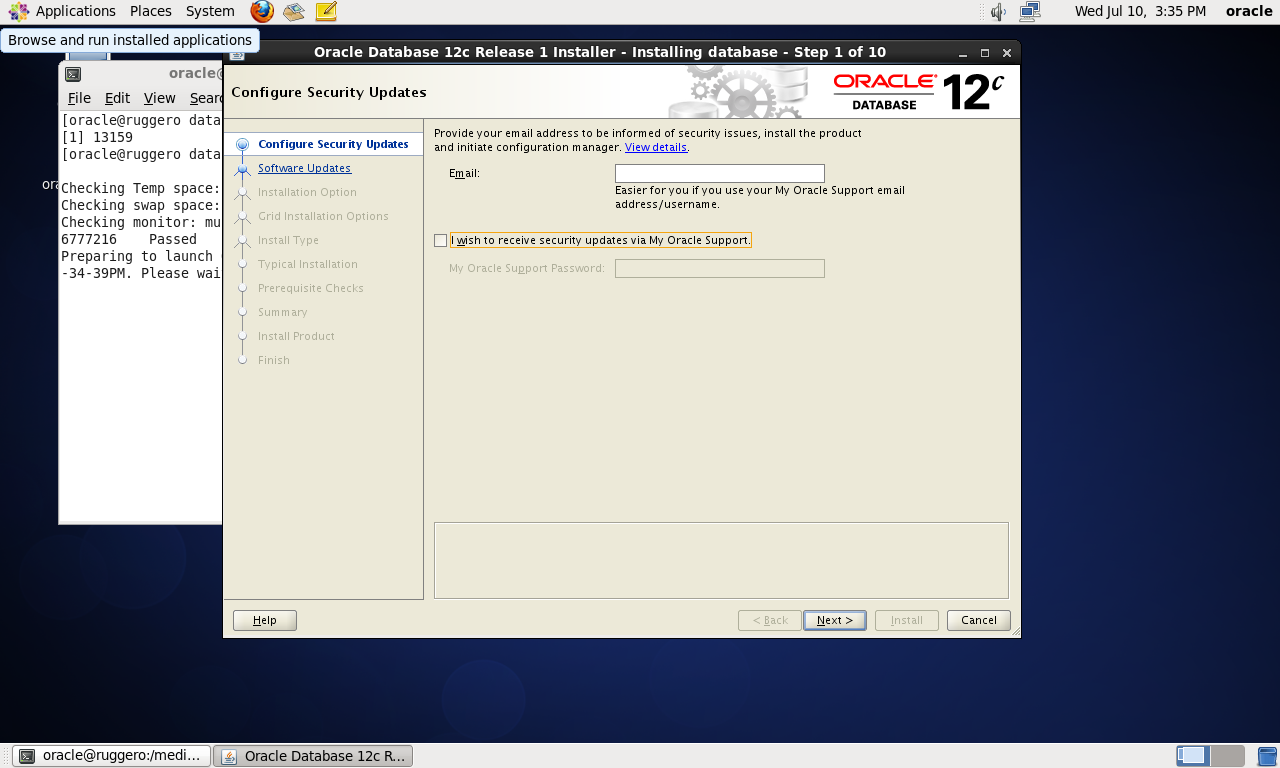
At the next screen select Skip software updates and click Next.

At the next screen select Install database software only and click Next.

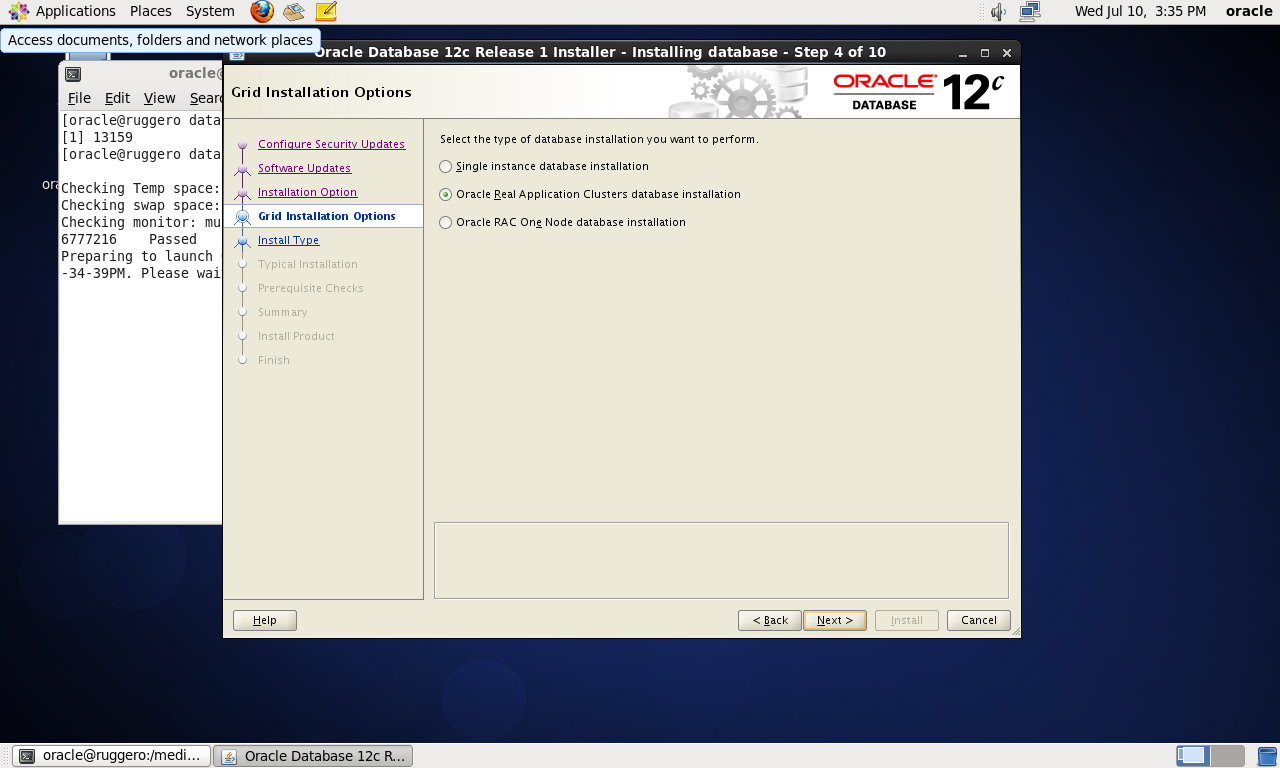
At the next screen select Oracle Real Application Clusters database installation and click Next.
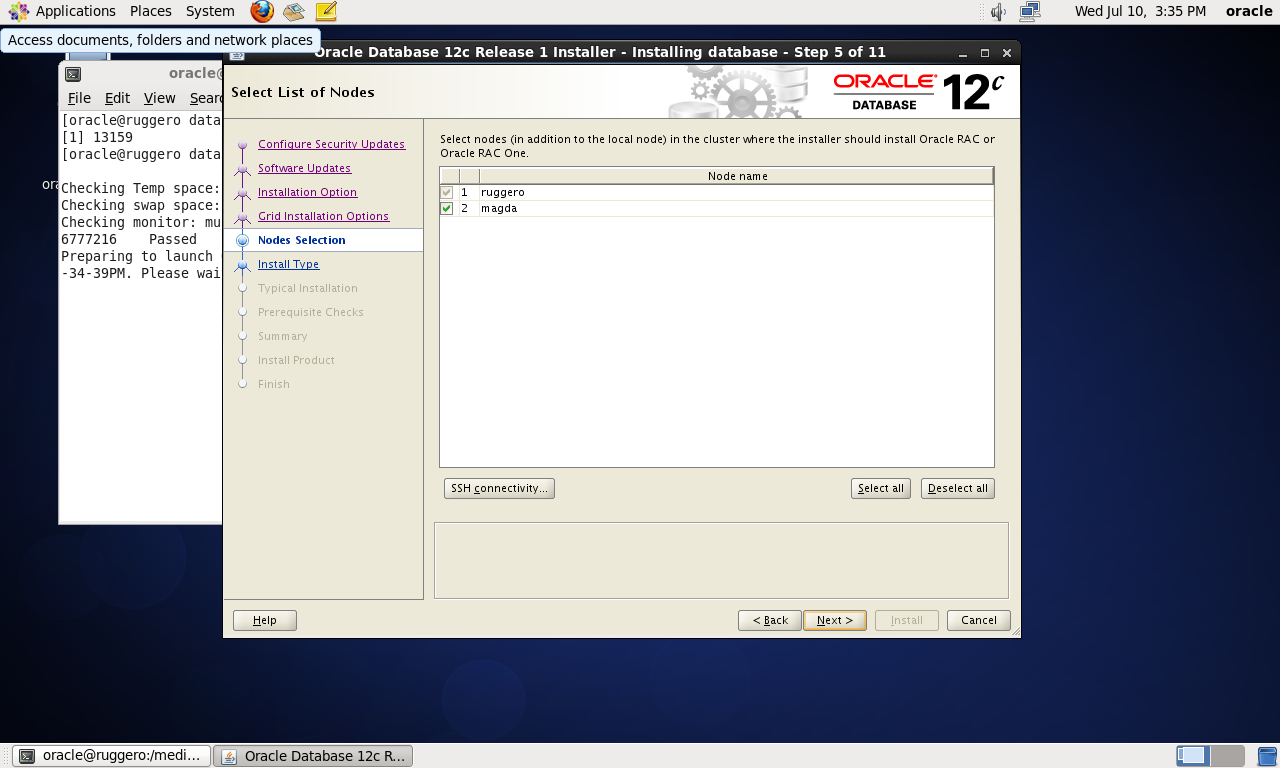
At the next screen ensure both ruggero and magda are checked and click Next.
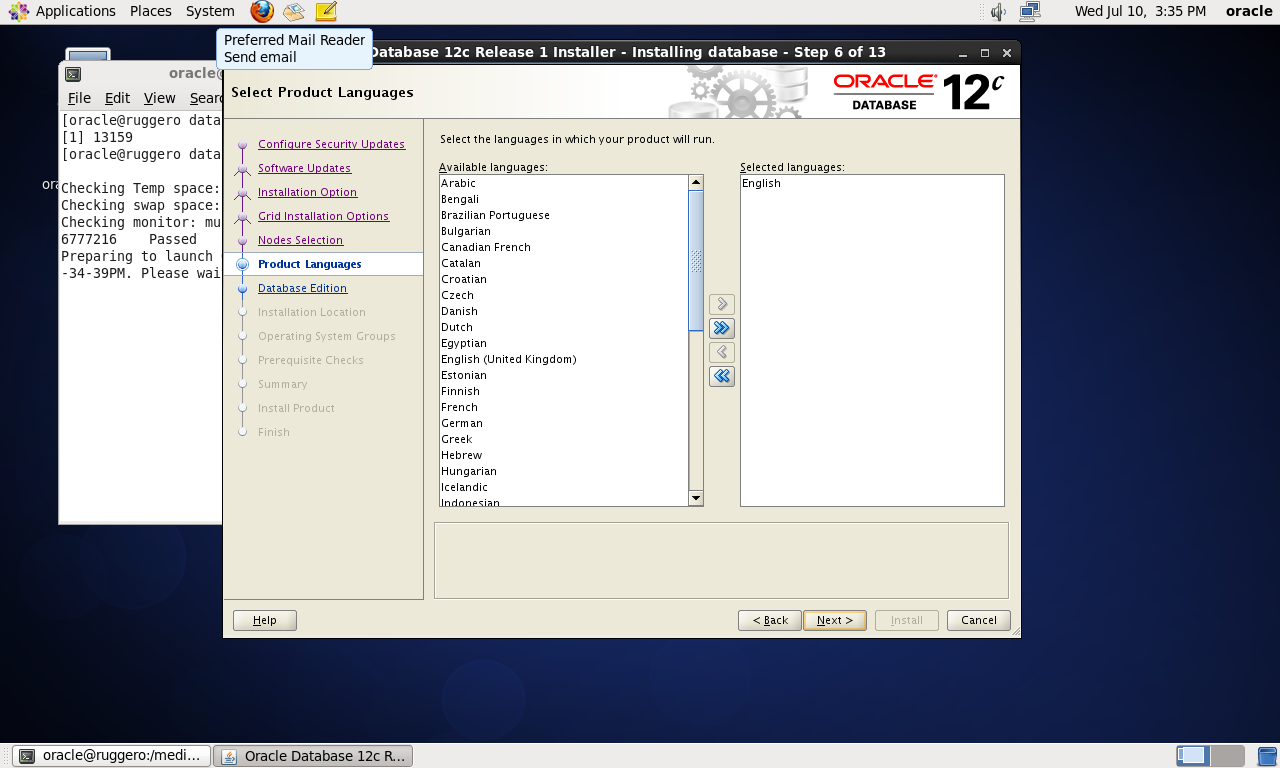
At the next screen select the languages you want to install.
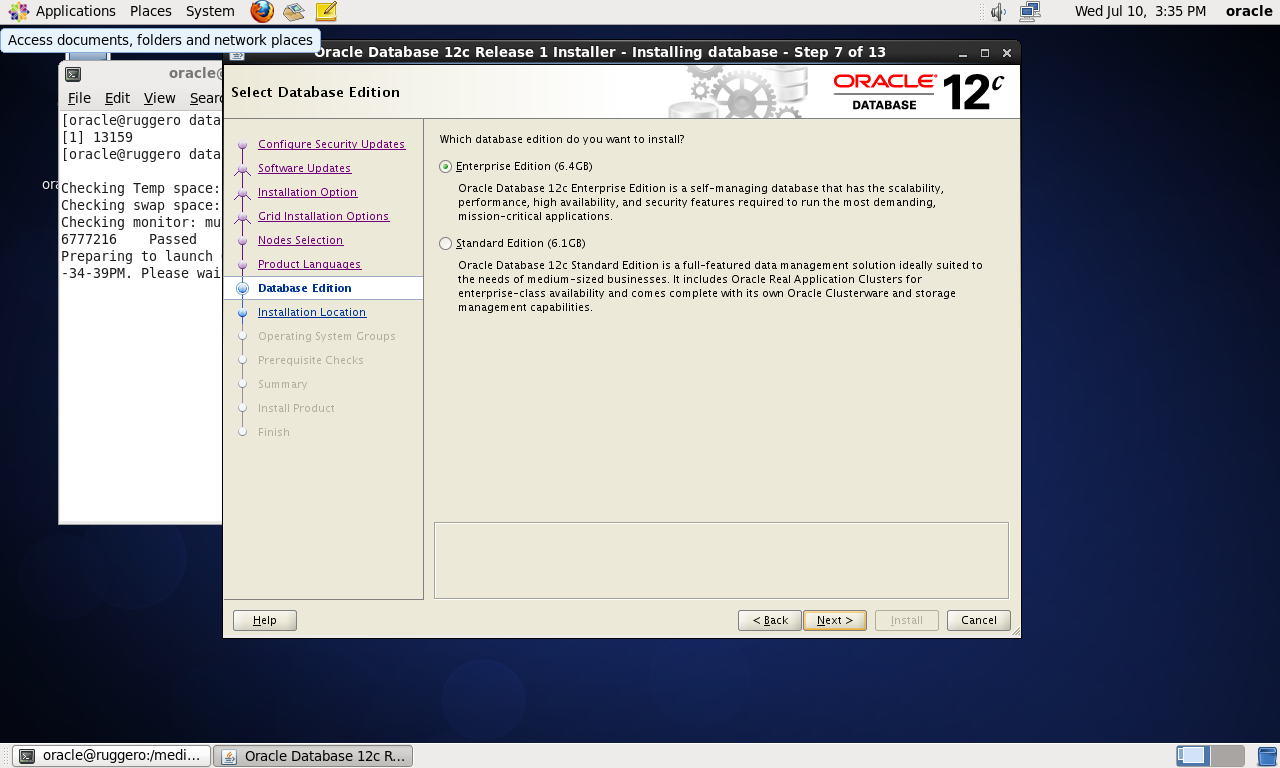
At the next screen select Enterprise Edition (6.4GB) and click Next.
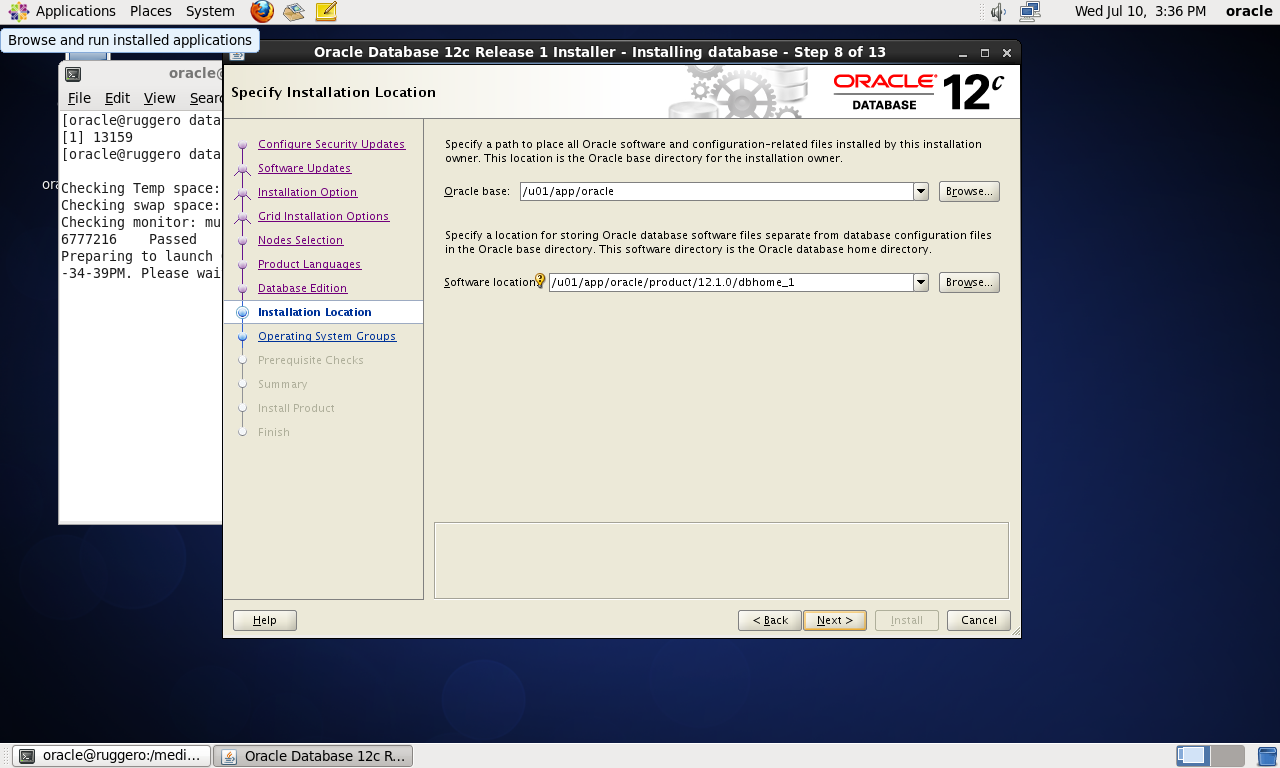
At the next screen select where you want the Oracle binaries to be installed. I accepted the defaults of:
| Component | Location |
|---|---|
| Oracle Base | /u01/app/oracle |
| Software location | /u01/app/oracle/product/12.1.0/dbhome_1 |
At the next screen assign the OS groups and privileged database roles.
I selected the defaults offered as follows:
| Privilege | OS Group |
|---|---|
| Database Administrator (OSDBA) group | dba |
| Database Operator (OSOPER) group (Optional) | |
| Database Backup and Recovery (OSBACKUPDBA) group | dba |
| Data Guard administrative (OSDGDBA) group | dba |
| Encryption Key Management administrative (OSKMDBA) group | dba |

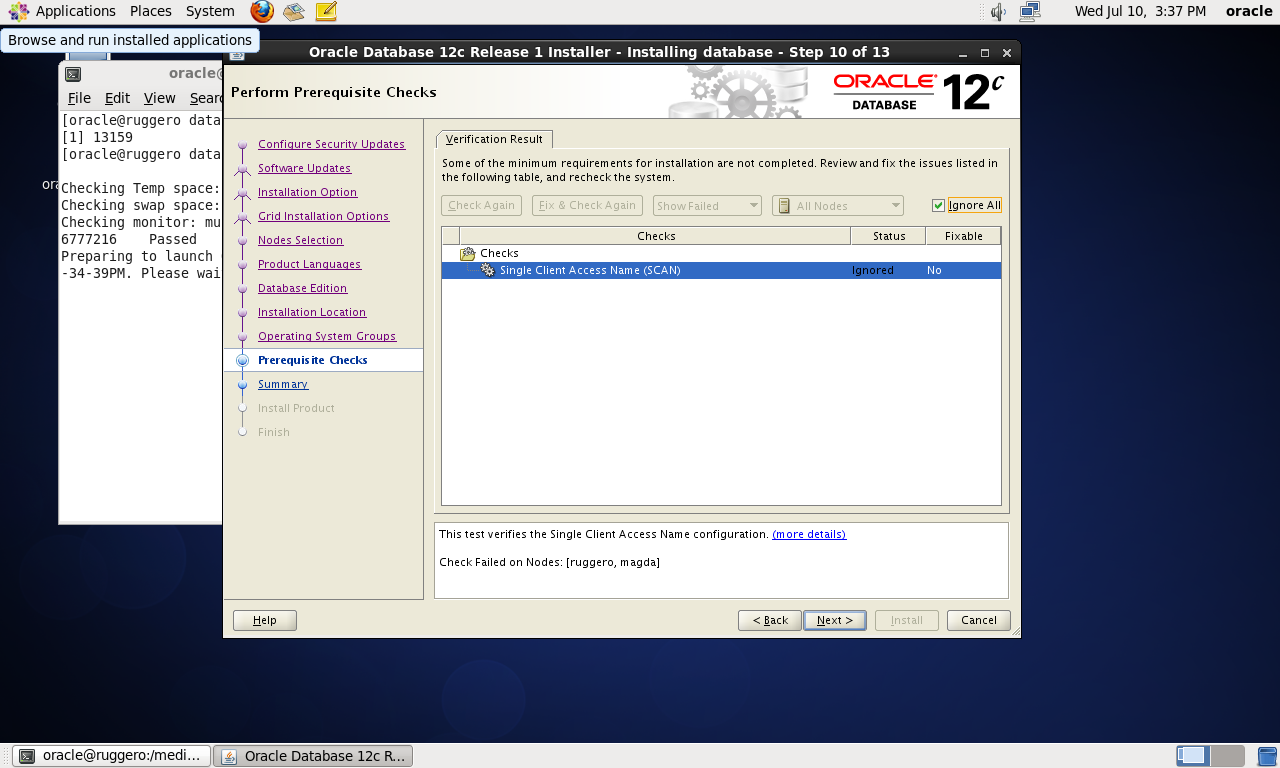
At the next screen the installer will verify the cluster and report the SCAN address as an issue. Click Ignore All and then click Next.
The next screen offers us the ability to review our seelctions. Review the options you chose, and if everything looks okay, click Install.

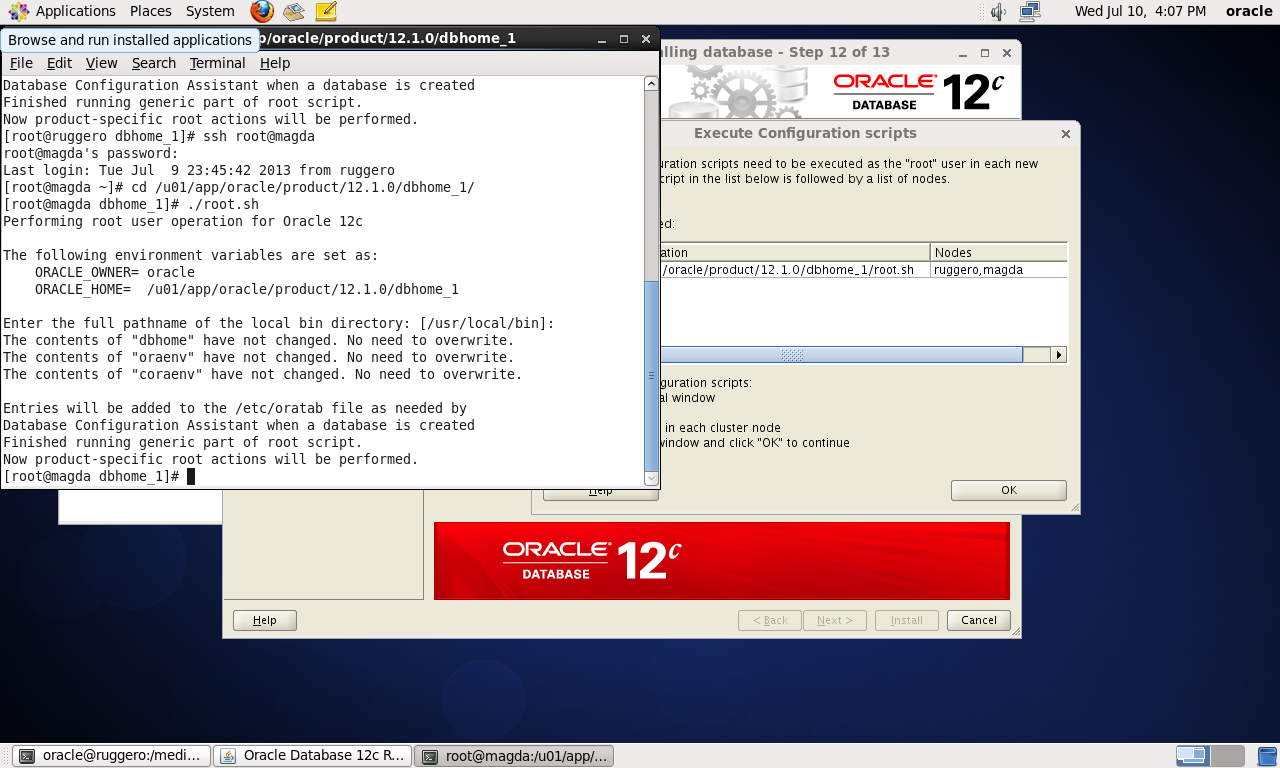
During the install process, the installer will prompt us to execute the root.sh script on each node of the cluster.
Unlike the old grid root.sh, this script does not care in which order you run it in. This is still a manual step so open a terminal window, log in as root and run the specified script:
The next screen should report a successful install.

| Article Quick Navigation | ||
|---|---|---|
| Previous Step | Main Index | Next Step |
 the gruffdba
Reblogged this on Sutoprise Avenue, A SutoCom Source.